Multi-stop Route Planner
Turn an address list into a multi-stop route
A guide to adding destinations from an Excel address column. Choose between pasting and CSV import, review search matches, and add the places before planning your route.
Best for: Multi-stop days, errands, travel, sales, deliveries, route visits
Turn an Excel address column into destinations
Paste one address per line into bulk input, parse the list, check the matched places, and add them. Pasting supports up to 20 lines at a time for free and 100 with Pro. Importing a CSV file directly requires Pro.
Bulk parsing and route calculation have different limits. Both plans currently calculate up to 10 destinations per route. CSV/TXT files must be no larger than 200,000 bytes; CSV reads only the first column. If addresses contain commas, paste the address column directly and check the matches.
1. Prepare one address column
Copy the address column from your spreadsheet. Keep recipient names and phone numbers out of the address field.
2. Check every search match
After parsing, check for similarly named places and wrong street numbers. Correct unmatched addresses or use the map picker.
3. Add places and review conditions
Check the start point, transport mode and stop durations before calculating. Compare the number of pasted lines with the places actually added.
For delivery preparation, read the delivery route guide .
Current limits and how the app works
How many destinations can I calculate?
Route calculation currently supports 10 destinations on both Free and Pro. The Pro input screen allows 30, but calculations with 11 or more do not complete. Bulk parsing limits of 20/100 lines are separate from the calculation limit.
Is data sent outside my device?
History, notes and photos are stored on your device. Place searches and route calculations send addresses, place information and coordinates to our server, which sends the necessary data to map services. Opening an external map or calendar also passes the selected places or schedule to that service.
How do Pro purchases and trials work?
Purchase Pro inside the iOS or Android app; Web purchases are unavailable. Check the purchase screen for regional prices and eligibility for the 7-day free trial. Cloud sync and team management are not currently provided.
Is the shortest route guaranteed?
Calculate a suggested order using travel times. Set departure and stop durations or fix positions in the order. The shortest route is not guaranteed. Target arrival times trigger late warnings; they do not automatically constrain the route.
Pain Points
Why multi-stop trips get messy
- ! The best visit order is hard to see
- ! Destinations are entered repeatedly into map apps
- ! Recurring routes are rebuilt from scratch
- ! Visit records disappear after the day ends
Solution
Core multi-stop features
- ✓ Auto-sort destinations into a shorter order
- ✓ Pick hard-to-search places directly on the map
- ✓ Reuse saved routes
- ✓ Launch navigation, add calendar events, and save history
Workflow
Three-step route planning
Choose a start point
Use current location, home, office, or any address.
Add destinations
Search, paste, import, or pick from the map.
Review the optimized route
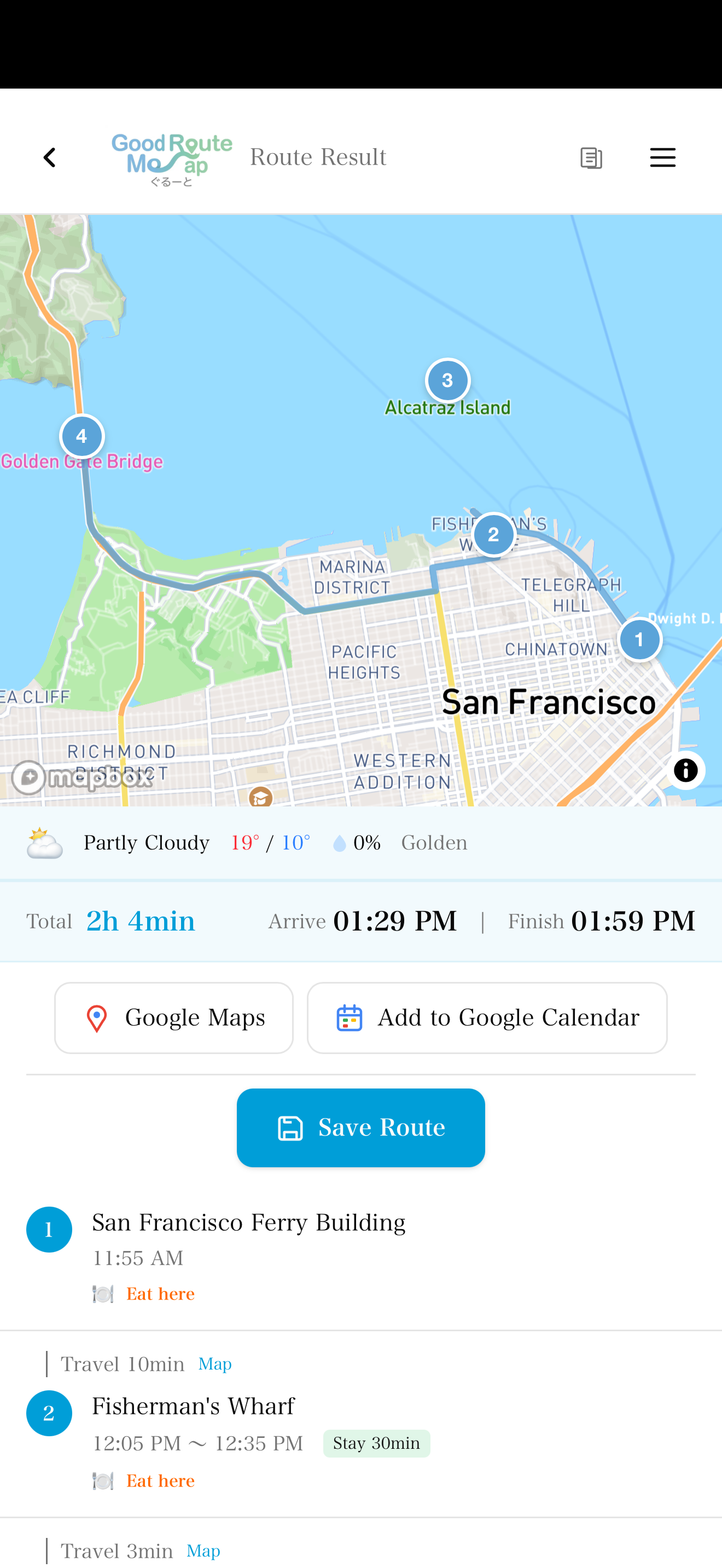
Check arrivals and open navigation.
Why It Works
Useful for work and everyday trips
Go(od)Route focuses on the work before navigation: deciding the order, saving repeat routes, and keeping useful records.
Available on iOS, Android, and Web
Saved routes, widgets, and one-tap launch
18 languages and 27 region settings
FAQ
Frequently Asked Questions
Can I use it for errands or travel?
Yes. Add all places you want to visit, then review an efficient order before you leave.
Can I add places that search cannot find?
Yes. Use the map picker to drop a pin directly.
Stop guessing the best order
Add destinations and let Go(od)Route build the route order.
Related Use Cases
Delivery Route Planner
Turn a delivery address list into a route plan
Sales Route Planner
Plan a field-sales day in minutes
Home-care Route Planner
Keep appointment-based visits on schedule
Google Maps Alternative
Review your stop order, then open Google Maps
Route Optimization App
Stop spending your morning working out the order
Field Service Route Planner
Stop rebuilding the same round every time
Property Viewing Route
Decide the viewing order before the appointment
TSP Route Planning